Showing posts with label Student Post. Show all posts

Monday, April 4, 2016

Day 131 - IOS 9.3, is it really Worth the Download? - Quentin Inglis - BHS Sophomore

This post originally appeared on the blog of BHS Help Desk student Quentin Inglis. 
IOS 9.3 has been released and comes with many new features. Apple’s Classroom app was also announced recently.Each have their benefits which will significantly make many things easier. Pros, however, always come with cons. Let’s take a look at the pros and cons of IOS 9.3 and then what Classroom has to offer.
Pros of IOS 9.3
IOS 9.3 adds a multitude of new features such as Night Shift and Notes lock and improvements to Apple Music and News. News is more customizable and lets you add a song to a playlist without saving it to your library in Apple Music.
Night Shift
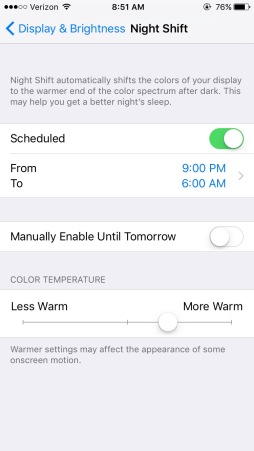
Night Shift is very cool in the fact that it makes it so that when looking at your device at night, the blue light the device emits turns to orange, which is a lot more gentle on one’s eyes. The normal blue light emitted from the screen interferes with the brain’s ability to fall asleep; that’s why you can’t have a good night’s sleep when you’re on you’re device right before bed. This feature emits an orange light which does not interfere with the brain. The screen does not have an orange tint, your eyes adjust after a few seconds to see it normally. I myself have tested this out and I really like this new feature, seeing as though I use my phone a lot at night and in the early morning
image
Notes Lock
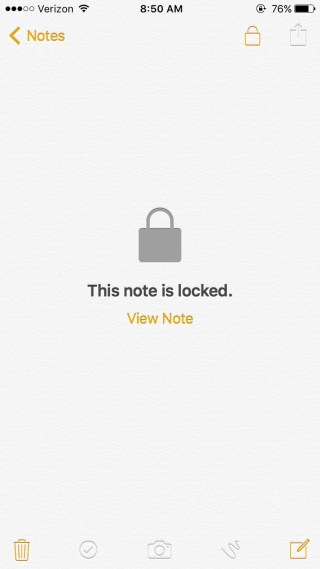
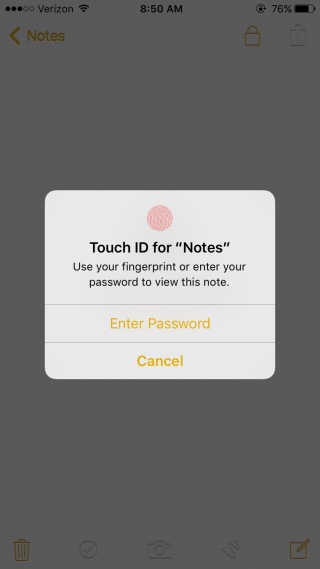
Have you ever noticed how unprotected the Notes app is? It can hold all your sensitive information and anyone can look at it if they have your phone. Well if this concerns you, download 9.3 because it introduces Note Lock. Notes Lock is connected with Touch ID and allows the user to set a fingerprint lock or password on their Notes to keep private information private. Now you can safely keep your bank account information or SS number or anything you want in your Notes app because of Notes Lock. I tested locking and unlocking notes in the app and it does work very well. You can lock specific notes and keep them unlocked if need be. This feature is very cool and I will definitely be using this in the future.
Tuesday, September 23, 2014

Day 16 - 3 Reasons Why Google Calendar is the Student Athlete’s Best Friend - Cat Hoyt, BHS Senior

Picture this: 6:52 you wake up. You have to be out the door to school in 8 minutes and you  have to get all of your stuff ready for school, sports and whatever other various activities you may have after school. It’s a challenging feat that usually requires the help of several different apps including multiple calendars, weather apps, reminder apps and many others. Now, imagine if there was a way to use just one app that we’ve all heard of and probably frequently use to make this an feasible task….There is!
Google Calendar has been the most helpful thing for me in managing my insane life. From the quickness and reliability of it, clearness and conciseness in separating events, ability to sync with other calendars, enable weather forecasts, create tasks, and many more, Google Calendar is one of the most useful tools in keeping the crazy life of the student athlete in check.
Here are 3 quick tips on how to get the most out of Google Calendar.
  1. Syncing Calendars Together
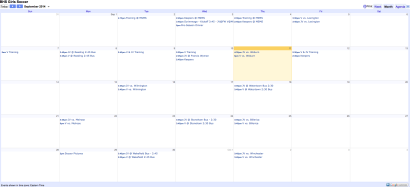
For the first two years of high school I had to copy and enter every single practice, game and team event into my calendar separately. That is way too time consuming and there is a much easier way. If you go onto a computer and open a calendar that is shared with you, for example a work or sports schedule, you will notice that in the bottom right corner of the calendar there is a button that says “+GoogleCalendar.” Next, your calendar will open and your computer or iPad will ask you if you to confirm if you want to add this calendar. By clicking yes, all the information in the shared calendar is added to your calendar alongside all your other events so it is all in one place. Below is an image of my soccer schedule so that you can see the location of the Google Calendar button in the bottom right corner.
Screen Shot 2014-09-11 at 9.24.04 AM
2. Enabling Weather Forecasts 
In addition to syncing calendars through Google Calendar you can add a daily weather forecast to your calendar so you can have your schedule for the day as well as the temperature and projected weather for that day all in one place. To enable this feature open your calendar in Google Calendar and go to settings and select general. Scroll to the feature labeled “location” and enter your town and zip code. Then you are going to want to deselect “do not show weather” and change that to Fahrenheit. This is shown below on my calendar as well.
Screen Shot 2014-09-11 at 9.48.14 AM
What this does is adds a little icon to the top of each day on your calendar with an image depicting what the weather will be like that day. When you click the icon, it expands into a full overview of the weather forecast. This is really convenient for packing bags in the morning because you have your whole schedule and the weather forecast all in one place. You can see the icons on this screenshot of my calendar below. Knowing the weather in New England is crucial, since the day can start at 70 degrees and sunny or end at 50 with a tornadoes watch. You never know what you are going to get!
.Screen Shot 2014-09-12 at 8.36.52 AM
3. Creating Tasks
Personally, I am the worst at remembering to do things so having the ability to add tasks to my calendar is awesome because I am constantly reminded of the things I need to get done every single time I check my calendar. The fact I am able to slide the task right into an area on my calendar where it fits perfectly and there is the ability to check it off when its done is really helpful.
So how do you do this? First, go to month view on your Google Calendar and click the day that you want to add the task on. The “event” tab will be selected. Change it to the tab that says “task.” Simply enter your task and hit “create task.” A checkable task will now appear on your calendar alongside your now synced schedule and weather forecast.
Screen Shot 2014-09-22 at 9.59.24 AMScreen Shot 2014-09-12 at 8.53.40 AM
Here’s my soccer team below ! You can find me five in from the right in the front row.
unnamed-3
Hope this post is helpful! If you need any one on one assistance with Google Calendar please come find me period six and I will be happy to help!

Wednesday, April 30, 2014

Day 143 - Beautiful Burlington - Adelaide O. Memorial School Fifth Grade

This post originally appeared on the Memorial School's Word Worms Blog 


Editor's Note - 

Word Worms was started by Mrs. Burns' 5th Grade Reading Class. The students wanted to create and publish their writing and share with other students.  Check out Word Worms to see all of the writing from 


Beautiful Burlington

The summer breezes hit my face, I smell the fresh air.
The vast sky looks as if it was painted.
The beautiful reds, oranges, purples, and yellows, color the sky.
The wispy clouds are sketched through the air, and the park feels like a painting.
   
The live band plays enjoyable music to my ears, it’s colors I can hear.
I lie back in my fold out chair and drink an icy cold Lemonade.
I stand up on the fresh green grass, it tickles my bare feet.
I walk around and I hear children laughing and giggling, as they run and play tag throughout the field. 
A man comes out with huge, buckets of soapy water and dips a large net in the water, and makes the biggest bubbles I’ve EVER seen!

I sit back down on my chair, listening to the music, and drinking my Lemonade. I pull out a PB&J sandwich and bite the soft bread.
The skies start to get dark and goose bumps perk up on my arms.
The sun is about to go to sleep and the moon will awaken. The heat still lingers in the now, chilly, sky
I couldn’t ask for a better summer beginning!
This is a beautiful town, a Beautiful Burlington!


-Adelaide O.

Monday, September 16, 2013

Day 10 - Trouble Remembering Passwords? - Jason Landry, BHS Senior

Thanks to BHS Senior Jason Landry for our first student post of the year! You can follow Jason and the work of his BHS Help Desk Classmates on the Burlington High School Help Desk Blog.

You can also follow our BHS Help Desk on Twitter - @BHSHelpdesk
If you are like most BHS students, you are using many different apps and digital tools and have a lot of different passwords to remember. Since school started, one issue we have encountered quite often in the Help Desk is students forgetting their passwords. As a result of this I decided to research 3 different password apps. Why download one of the three apps I’m suggesting?
1. They will keep you organized
2. They are simple to use
3. You’ll become a more responsible student
4. They are free
5. You’ll never forget a password again
These apps are ways to stay organized with your accounts for all different purposes, they are good for students, teachers, and others in the business world. These apps are available for iPads, iPhones, and iPods.
PASSWORD KEEPER:
The first app I found was Password Keeper.
With Password Keeper you need to set one 
keeper-osx-100044569-large
master password to protect all your other passwords. Then, you create an account with your email, and you can chose to create a security question. You can tap the right corner of the screen to add your password and what account that password belongs to, and you can also add a description. The password and account are put into alphabetical order depending on the name of which the password belongs to. This app is good for keeping multiple passwords and combinations to different places, such as a gym locker, all in one place. Important tip: You must remember the master password.
iPASSWORD:
The second app is called iPassword and it is very similar to the app Password Keeper.mzl.scdlsnox.175x175-75You have one master password on this one as well and you can back it up to your email so if you forget the master password it is still sent to your email. This app has multiple tabs with places where you may save your passwords. The first tab is logins, then wallets, accounts, and other. Logins are for social networking sites, wallets are for accounts you might have at a bank, memberships or identification numbers and etc., accounts are for things like iTunes or database accounts. The last tab is for “other accounts” not provided in the other tabs. On any of the tabs you click the right hand corner which is a “+” and add your password and it gets set up in a list in one of those tabs. This is very helpful if you don’t remember your passwords. This keeps your accounts extremely organized.
PASSWORD MANAGER:
The last app I found was Password Manager. This app is very similar to the other two apps  but this one is extremely simple. You still have a master password and there are 5 sections to chose from to classify where your passwords belong. You can also back up your passwords so they are remembered on your computer as well from this app. This app is very helpful for those looking for a simple way to store passwords.
images
These are all helpful apps to the everyday life of a digital citizen. As a digital citizen it is important not to share your passwords with anyone or anything (Spam) that you can’t trust, especially if that password is protecting something important. Make sure you have multiple passwords that are creative don’t use the same password to often.
Keeper pic