Showing posts with label IPad. Show all posts

Monday, December 1, 2014

Day 59 - A Tour of the BHS 1:1 Program - Nikhil Thakkar - BHS Senior

Last week, I was afforded the opportunity of perusing through Burlington High School’s main office hallways, through the art and photography studio, into the heart of BHS math with Mr. Khan’s AP calculus class. The BHS Help Desk shirt, customized for each individual tour guide, was merely the beginning of an imaginatively free session of “touring,” a time when I was able to show teachers, administrators, and parents from around the world how BHS has implemented technology into its classrooms. 
I, as a tour guide played the role of the messenger, answering questions and giving a general rundown about how an iPad may be helpful in “navigating a simulated cell,” throughout a biology class, or reading “ebooks” for an English class, ultimately making highlighting and note taking more accessible and effective. We even learned how Mr. Khan uses Notability and different calculator applications for different functions in his math classes. Although I gave the tour myself, it was not simply I who was talking. Quite the opposite, no one was “talking,” because the tour was much better described as a “conversation” between administrators and tour guide, as I aimed to engage administrators with the tour rather than lecture at them. 
A few prime examples of questions included: How do students use their study period? How are iPads used in foreign language classrooms? Is Burlington a BYOD school? I’d like to address each of these questions in their respective order, the first of which lends itself to explaining the truly open-minded, innovative ideology behind constructing the Burlington curriculum. 
Walking into the library, administrators witnessed a Google-like “lounge” area, where students seemed to be heavily focused on their iPads. I won’t deny that students play games (in class and out of class), but I will argue that students have learned individual responsibility not only for their lives but for their education; the underlying principle is that distractions, by definition, will always exist. However, it’s the idea that we need to learn how to effectively deal with these distractions that Burlington advocates for. Thus, throughout daily 45-minute periods, students are not only working, but they are also taking charge of their education and learning invaluable life skills, the most conspicuous being time management. 
The second question is one of my favorites, as I am a prospective linguistics major (yes, yes I know linguistics isn’t the same as languages). iPads are used heavily within foreign language classrooms as they allow for intensive involvement with reading, writing, speaking, and listening (especially the latter two). We were able to witness first-hand Señora DeSousa’s Spanish classroom using the iPad for a listening exercise. Personally, I find the iPad’s extremely effective and useful, as they launch students into the real world (as they listen to real interviews and read real newspapers). 
Lastly, BHS is not officially a BYOD school, however this doesn’t stop students from bringing their own Mac’s (and yes even Windows at times) per their own convenience. Burlington doesn’t restrict. It only opens doors. Ultimately, like in any school, it’s up to the student to take those opportunities or not (and see whether those opportunities resonate with them).  Being in the spotlight was…well…empowering. I experienced profound joy in knowing I have the power to advocate for and perpetuate Burlington’s ideology of intellectual freedom. As an avid public speaker, I had the most trouble with reigning my thoughts in at the end of the hour long tour as I had so much to say and so little time to say it. Nevertheless, this experience proved extremely invaluable and I sincerely hope to showcase Burlington and all of its talent to even more administrators in the future.
Best regards,
Nikhil

Thursday, October 2, 2014

Day 23 - iPad Introductory Lessons - Michelle Ardizzoni, Pine Glen Elementary IT Specialist


Here at Pine Glen Elementary School, our elementary students each have their own iPad to be used as a tool to enhance and support their learning.  As the instructional technology specialist, I can often be found at the beginning of the school year, in classrooms giving introductory iPad lessons to students.  

Mrs. Ardizzoni
During these lessons, I discuss important topics such as the basic operations of an iPad and its use and care.  Once the basics have been established, we are off on a learning quest to put those basic operation skills into practice.  Typically, I have the students locate and open the Drawing Pad App, which every student has available to them on their iPad.  From there, students use just one finger to select a crayon, marker, or colored pencil that allows them to "draw" with, and they create a picture of their own choice. Drawing Pad is an intuitive App that every student, at all grade levels can easily feel successful with, as early as their first time using it.  These introductory lessons are building a skill set of vocabulary, gestures, icon recognition, familiarity with their iPad, and self-confidence using technology, that students will transfer and apply to other areas of their learning. 

Monday, May 19, 2014

Day 156 - Streamline Workflow Using Google Forms - John Vallerand, BHS Senior

FormsIcon1One of the most powerful and versatile applications in the Google Drive suite is Google Forms. Forms is the ideal way to create surveys and is perfect for submitting assignments to teachers. Forms can also be used by coaches and club advisors to organize and manage information about their players or members. As part of the Help Desk course, we use Google Forms to submit all of our assigned work. Our instructor, Mrs. Scheffer, created a form for all of us in the Help Desk program. The form, titled “Help Desk Assignment Turn-In,” was shared with us and we access it through Drive on our iPads or on a computer.
Screen Shot 2014-05-14 at 10.39.38 AM
 Using Google Forms to Streamline Workflow
Using Google Forms is convenient for both me as a student and for my teacher. After every assignment I complete, I submit my work by copying and pasting the URL of the file into the form. Mrs. Scheffer then opens the spreadsheet linked to the form and has access to not only my files, but all of my classmates files in one convenient location. All of our folders have been shared with her and she has editing rights. But rather than access our work through clicking multiple folders, she can click on one link in the spreadsheet. We have found this workflow to be the easiest and most streamlined method to submit and access work and it allows us to be paperless. Mrs. Scheffer uses the comment feature in Docs and gives us feedback on our assignments. We then edit our documents based on this feedback and submit for a final grade. We recently went through this entire process when we completed our career portfolio projects. Mrs. Scheffer is the only teacher I have who is using this workflow, but I think it’s one that other teachers should consider and see how they like it. Forms can be made private so that the teacher has full control over who can submit responses. The timestamp can be controlled by teachers which is hugely important because it prevents changes to the date and time of submitting work.
 Creating a Form
Creating a Form is a simple process. First, you choose a theme and give your Form a title. As you can see from the screenshot below, there are themes students could use for both academic and personal reasons. For example, if I was throwing a graduation party (June 8th is right around the corner!) I would use the balloon theme.
Screen Shot 2014-05-15 at 9.08.28 AM
Adding Questions
The next step is to add questions. There are nine different types of questions you can choose from including multiple choice, text, and check boxes. You also have the option to determine if each question is required.
Screen Shot 2014-05-15 at 9.08.47 AM
Once your form is complete, you’ll want to choose the confirmation page settings before sending the form to recipients.
Screen Shot 2014-05-15 at 1.31.53 PMSending and Sharing a Form
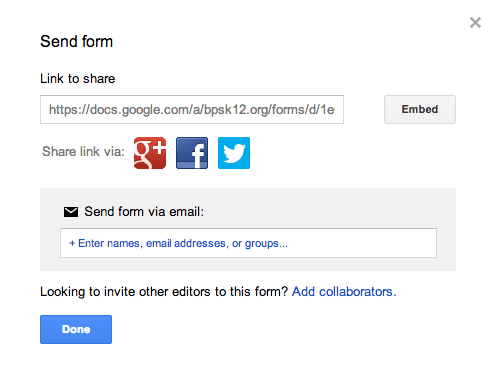
There are several options to choose from when sending and sharing a form including email, Google+, Facebook, and Twitter. Forms can also be embedded into blogs, websites, and emails. Just like with Google Docs, Forms can be shared with others for collaboration purposes and these additional users have editing rights.
Screen Shot 2014-05-16 at 8.08.23 AM Benefits of Google Forms:
  • Add themes
  • Choose a destination for the responses to go
  • You can validate answers
  • You can share your forms
  • Manage responses
  • Allows students to feel more confident that their work is turned in correctly
Looking For More Ideas?
Below are three links to additional ways Google Forms can be used in the classroom. If you wish to give the Form work submission a try and want assistance in creating and embedding the form, please don’t hesitate to come see us in the Help Desk for one on one help.
A Tour of Google Forms

Enhanced by Zemanta

Monday, March 31, 2014

Day 128 - Walking Through The PARCC – Our Week One Experience

This post originally appeared on Dr. Conti's Blog

As we conclude week one of field-testing the PARCC online assessments with students across our district we would like to share some thoughts from the experience. Before getting into the actual test itself, we need to reiterate a point that we make quite often regarding our phenomenal staff and students. The professionalism of our staff and patience and determination of our students during the glitches that were encountered as we began this new process were second to none.  In addition, we are thankful for our amazingly talented IT staff which put in countless hours in the weeks leading up to testing and at the end of each day to ensure that things would go as smooth as possible for our teachers and students.

Tweet from the MA DESE regarding our efforts

In regards to how many students we tested this week, we conducted about 3,500 sessions involving over 1,800 students in grades 3 thru 7 and grades 9 and 10.  In many cases, students took multiple test sessions this week, completing two math sessions and at least one of the three ELA sessions. During this process, we had students complete PARCC field testing on iPads, Chromebooks, and in computer labs on desktop computers.

As we expected, Burlington’s technology performed extremely well. Our most common hangups were frozen screens which needed a reset of the device. In instances where there were bigger issues, we were able to get in contact with both Pearson and the Massachusetts Department of Elementary and Secondary Education and maintain an ongoing dialogue with them about issues and improvements. These conversations led to testing environments that saw far fewer technological problems with each passing day.

Tweet from Director of Technology Integration at the conclusion of week one testing.

PARCC field-testing will continue at most schools through next week and we will continue to provide updates as we proceed through the schedule.  Please remember that our intentions for taking on this endeavor are two-fold. First, we would like to provide our students with an online experience that will help them prepare for the future which will certainly include some form of online, high-stakes testing. Second, we are able to provide first-hand feedback to the Massachusetts DESE, PARCC, and Pearson that will help improve future versions of these assessments which will eventually be given to every student in the state.
Enhanced by Zemanta

Thursday, March 27, 2014

Day 126 - BHS Spanish students collaborate using Touchcast and iMovie

This semester BHS Spanish students have been collaborating in the classroom in order to record various Spanish conversations using different video and audio recording apps on the iPad.  Recently, students recorded their conversations using Touchcast and iMovie.  Please view their videos below.  The first example below is from iMovie.  Using iMovie, students tested the background features as well as voice effects.  The second student sample, How to cocinar una comida americana, was done with Touchcast.


Enhanced by Zemanta

Monday, March 17, 2014

Day 118 - iMovie Trailers and Coloring Books - Ben Schersten, Francis Wyman IT Specialist

This post originally appeared on Ben's Blog
iMovie-2.0-for-iOS-app-icon-smalliMovie on the iPad is pretty awesome. And the Trailer function is a great starting point (you can find my iMovieTrailer storyboards here). But remember, it’s just that – it’s just a starting point. Most of the teachers I know who have used it for a student project come away from the experience saying, “that was great, but now that I get it I wish it could do more.” Fortunately, you can.
photo (2)
You see, the Trailer function is a lot like a coloring book; all you can do is color in the lines. Sure, you can assign a project to your students using the Trailers and they’ll all come out different, but they’ll also all kind of be the same. It’s like a coloring book: each kid can use different colors, but they all kind of end up with the same picture.
So use the Trailers, and then grow out of them. Start using the Movie function. Start drawing with a blank piece of paper. There’s so much more you can do.
And here’s a generic iMovie Movie storyboard. I think it’s a good idea to have students do some planning before they get a camera in their hands.
Enhanced by Zemanta

Friday, December 20, 2013

Day 75 - 1:1 and BYOD - Xin Zhang, Burlington High Senior


This post originally appeared on the BHS Student Help Desk Blog


Disclaimer: Yes, it is incredibly shallow of me to be complaining about a $500 device that I have not paid a single cent for, but let it be known that I am, along with the rest of the student body, in fact grateful that BPS has gone with a 1:1 iPad program. This is simply a fun exercise that attempts to explain the disparity between two different technology programs, and to do so will involve a little trashing. No hard feelings, iPad.
Second disclaimer: This article will not discuss the value of both 1:1 and BYOD in a classroom setting. It has been written about over and over and over again. Instead, it will directly compare the differences between the two programs. The differences in the capabilities of the devices will not be discussed in this article as well; however, here’s our review of the Chromebook.
Although it might sound like fiction to some, any 1:1 Program isn’t without its flaws. Here are two challenges to a 1:1 Program that stand out the most:
  • Schools need significant financial resources to be able to implement and sustain it
  • iPads and Chromebooks are not the best devices for every student
I’ve disregarded 1:1 laptop programs. While a decent laptop might be on par, in terms of cost, with an iPad or a Chromebook, a high-end laptop (MacBook Pro, for example) is several times more expensive. Even if a district was able to afford to buy every one of its students a MacBook Pro and let them bring it home, imagine the controversies it’ll create. Spending more than $1000 on each student, I’m sure, is not something every district has the ability to, nor want to do.
Here’s another drawback: older devices running up-to-date software (updates are required by the school) are nuisances. A two and a half year old iPad 2 running iOS 7 is like a rabbit running with a shot leg; what used to be a fast rabbit is now limping, and in spectacular fashion. A day has not gone by without an app crashing in the middle of class, I can’t scroll smoothly (which is surprisingly frustrating), and waking it up from sleep often takes more than 5 seconds. It isn’t useless, but it’s less useful. More and more often I find myself stashing my laptop in my backpack before school every day, and more and more often I find it more convenient than the iPad.
BHS has been 1:1 iPad for two and a half years, and while some are satisfied, others think maybe it’s time for a change. With these aging iPads, maybe it is time for an adjustment. After all we can’t defy change. Change is good, right? Is it time for BHS to make the change from 1:1 to BYOD?
***
What is BYOD?
Some will call it BYOT (Bring Your Own Technology), BYOP (Bring Your Own Phone), or BYOPC (Bring Your Own PC), but they all follow the same concept: instead of using school-issued devices, students and faculty will bring in their own, be it a laptop, a smartphone, an iPod, an Android tablet, a Windows tablet, a Linux tablet, or even one of those HP tablets. Maybe even a pair of Google Glasses. The point of BYOD is that the choice of the device is up to the user.
Hypothetically, the more familiar the user is with his device, the more productive he’ll be. Ideally, BYOD should increase productivity among the student body; it’s worked for businesses before. Letting people perform the same task but in their own terms can’t possibly be detrimental. However, would that be true for a school, like BHS, that is already 1:1, where every student already has a device they’re familiar with in hand? I believe that depends on the device: I’ll ditch the iPad in favor for my laptop, absolutely. Ditch the iPad for a wristwatch? Probably not.
Of course, I’m speaking for myself. Others will feel different. But isn’t that the beauty of BYOD?
Who’s Paying for It?
On the financial side of things, BYOD is considerably cheaper than 1:1, given schools aren’t purchasing devices. However, there is still money involved for schools. “Even though BYOD is better financially for a school district, you still have to have a lot of money invested on the infrastructure. For example, all of the wireless system, the network, and the security of network, especially if you have devices coming in that aren’t yours, that you aren’t controlling. So you have to spend money there,” said Dennis Villano, Burlington Public School’s Director of Technology Integration.
The money that the schools save, however, will have to come out of the students’ pockets. They’ll need to buy a device of their own to bring to school. This might not be the case for most students, however: they may already own that device. Here’s another beautiful thing about BYOD: these devices that students will bring to classes, are, in most cases, familiarized, capable for classroom use, and ready to go.
The Problem with BYOD
While BYOD might sound like the best thing since sliced bread, it is a potential nightmare for faculty and staff. “If somebody’s having a problem with their personal device, how would we best provide support for them?” asked Villano. “Our IT department is small for 1000 different devices from 1000 different students. But in a 1:1 environment, we can have a very clear idea of how we can help people with their problems.”
BYOD’s Achilles heel is fragmentation. Does it make sense to have students bring in whatever device they feel most comfortable with, be it an iPad, a laptop, or something else? There is absolutely no debate about that. The debate does begin, however, when one considers the following: what if the device malfunctions and the student has no idea what to do with it? How would schools monitor usage of these devices? Or perhaps most importantly, how are teachers supposed to adapt their curriculum to fit the capabilities of “1000 different devices from 1000 different students”?
“We wanted to have one consistent device for every student, so that if a teacher was teaching a class, they wouldn’t have 5, 6, 7 different devices in front of them. We wanted to have a consistent environment so they can prepare better for each class,” said Villano. “If students brought in 3 or 4 different devices, we were concerned that teachers might be spending a lot of time troubleshooting with devices, and not having enough time to develop what they teach in class. So if we had a consistent, similar device, that everyone has learned about, that we trained everyone on, that we bought apps for, then people can get past the tech support side, and just go on to teach their content. The ultimate goal remains clear – successful student learning.”
Imagine the amount of wasted class time because a student wasn’t able to get his iPod on the internet. Imagine another student with a blue screen of death. Spinning pinwheels on MacBooks. Spontaneous restarts. Spontaneous combustions. God forbid if batteries run out of charge and there aren’t enough outlets to go around for everybody.
The Verdict
At this point, one might wonder, why with all of BYOD’s flaws, would a 1:1 school ever contemplate switching to BYOD at all. The reality is for every one of BYOD’s flaws, there’s one for 1:1. Is 1:1 a good investment? Sure, if  is for a smaller community with enough resources like Burlington, but is it a good idea for a city like Los Angeles to invest $1 billion on iPads? Is the chosen device right for the school’s curriculum? What if the technology becomes outdated with time?
“Obviously some school districts might go to BYOD first, simply because they can’t afford to provide a 1:1 environment but the financial investment was good for us.” said Villano. Perhaps the choice between 1:1 and BYOD should be made with finances in mind. But then, is the financial tradeoff worth it? Is it worth getting every student “on the same page” with one device, or should school districts trust their students to get on the right one?
These are questions that every school district and students should consider. My proposal?Mix the two up. From my experiences, BHS is more than capable of supporting different devices at one time without much trouble. Any school that is already 1:1 or BYOD should have no trouble. Let students decide if they want a school issued device or if they want to bring in their own. Give students the choice, make them responsible for the choices they make. That, I believe, is the way to go.
But that’s just my opinion. What’s yours?
Enhanced by Zemanta

Monday, September 30, 2013

Day 20 - iPad Self Portraits 2013 - Keith Mistler, BHS Art Department

This post originally appeared on Mr. Mistler's blog


I love this project! This is a great icebreaker during the first few days of school so students can get to know one another. We all use iPads in the school and this project shows that the iPad is an extension of us and our personalities. Just take a look at these unique personalities this year. I can not wait to see the creativity pour out of these students!

Screen Shot 2013-09-30 at 9.50.19 AMScreen Shot 2013-09-30 at 12.27.28 PMScreen Shot 2013-09-30 at 12.27.09 PMScreen Shot 2013-09-30 at 12.26.54 PMScreen Shot 2013-09-30 at 9.54.03 AMScreen Shot 2013-09-30 at 9.53.33 AM
Screen Shot 2013-09-30 at 9.52.27 AMScreen Shot 2013-09-30 at 12.28.17 PMScreen Shot 2013-09-30 at 12.27.53 PMScreen Shot 2013-09-30 at 9.57.12 AMScreen Shot 2013-09-30 at 9.56.46 AMScreen Shot 2013-09-30 at 9.56.05 AM
Screen Shot 2013-09-30 at 9.55.39 AMScreen Shot 2013-09-30 at 9.55.16 AMScreen Shot 2013-09-30 at 9.54.47 AMScreen Shot 2013-09-30 at 9.54.26 AMScreen Shot 2013-09-30 at 12.29.42 PMScreen Shot 2013-09-30 at 12.29.27 PM
Screen Shot 2013-09-30 at 12.29.03 PMScreen Shot 2013-09-30 at 11.35.16 AMScreen Shot 2013-09-30 at 9.58.13 AMScreen Shot 2013-09-30 at 12.28.49 PMScreen Shot 2013-09-30 at 9.57.43 AMScreen Shot 2013-09-30 at 12.31.15 PM
iPad Self-Portraits, a set on Flickr.

Thursday, September 5, 2013

Day 3 - If You’re Going to Use iPads With Kids, You’ll Have to Know This Trick, Ben Schersten, Francis Wyman IT Specialist


Okay, I admit it. I make mistakes. And I love the “undo” command. You know, command+z in OS X and ctrl+z in Windows.

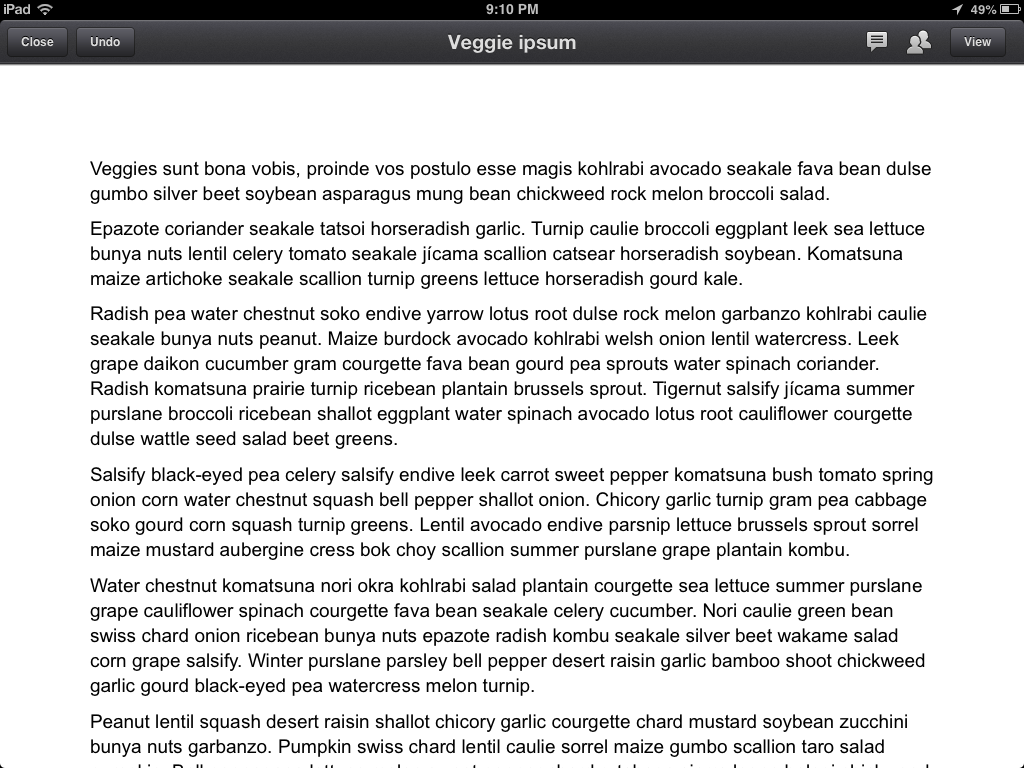
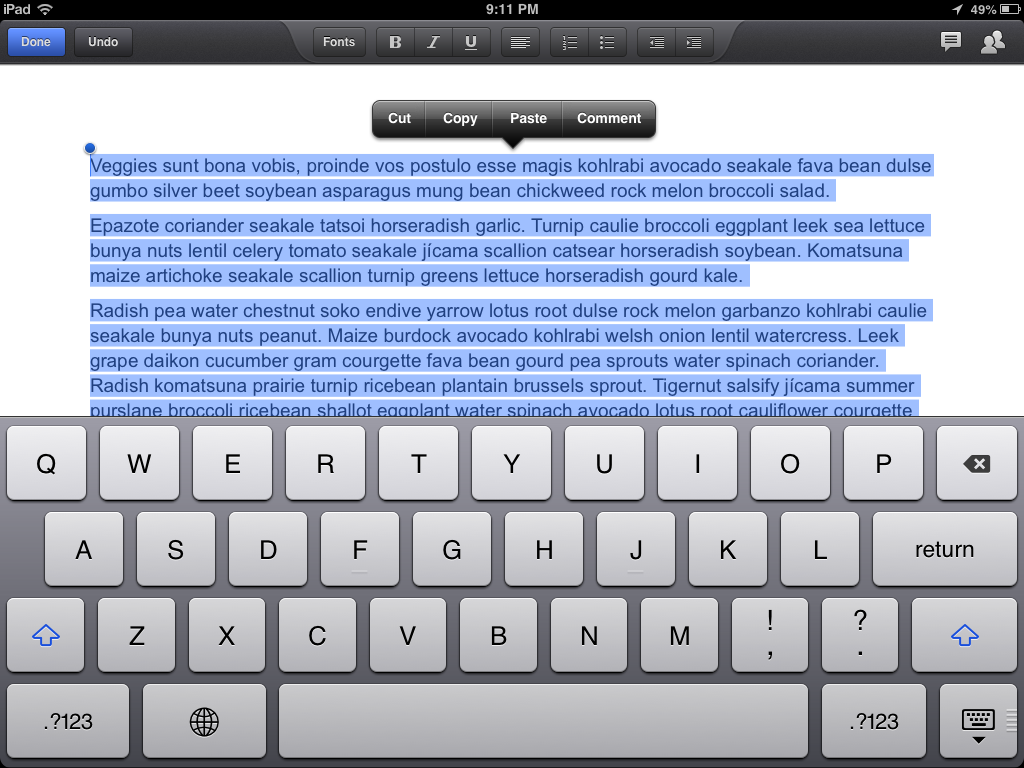
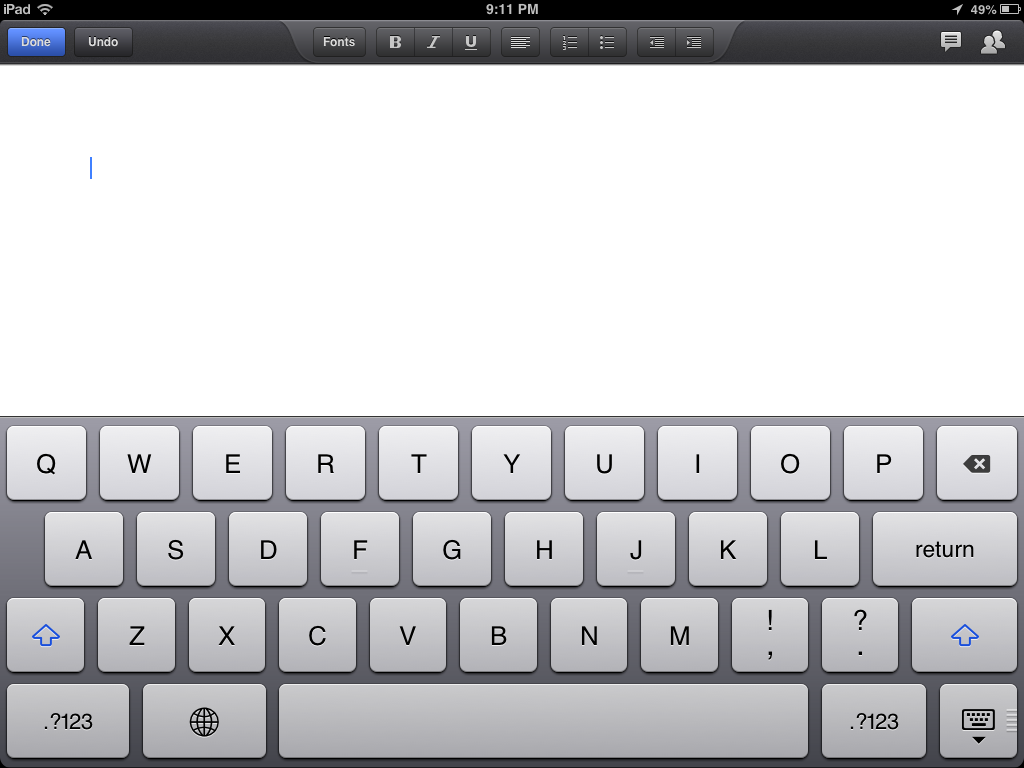
And if you’ve ever worked with kids you know they make mistakes too. There they are, writing away when somehow they manage to select a paragraph or two (or maybe they “select all”) and accidentally bump the delete key… oops.
Some text…

Selected…


And deleted…


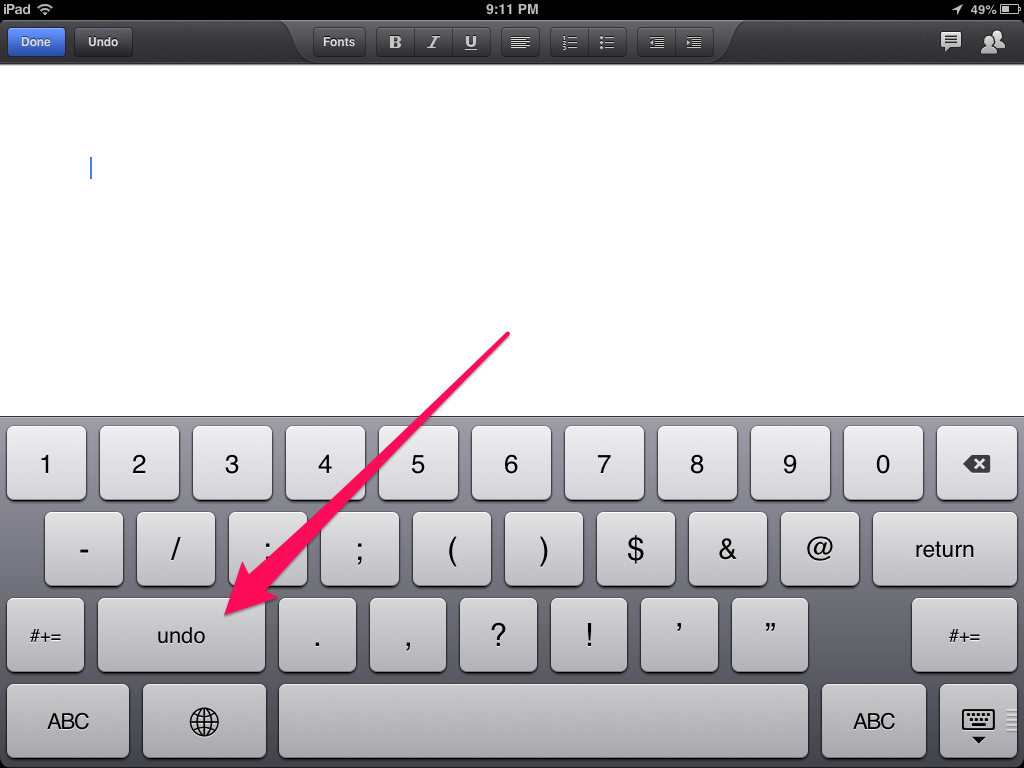
Oh no. This is an iPad; there’s no command+z. But… there is an undo button. With the traditional keyboard up, tap the “.?123″ button to bring up the secondary keyboard. There, on the left is the “undo” button.


Google Drive and Pages both have their own undo buttons (up top on the left, did you notice those in the screenshots?) but this works everywhere. Evernote, Notes, etc. Anywhere you enter text.
So, the next time your students lose a paragraph of work (or more), you can help them get it back.
Sadly, the undo button is not present on the iPhone.
——-
photo credit: llauren via photopin cc
For those out there that noticed the Lorem Ipsum text in the screenshots, the Veggie Ipsum generator I used is here. For the meat-lovers, try Bacon Ipsum.


Enhanced by Zemanta