
This post originally appeared on the BHS Help Desk Blog
With this intuitive and easy to use productivity tool, organizing your schedule is a breeze no matter how convoluted it is. inClass will let you organize all of your courses, to do lists, work, and extracurricular activities. It can even give you a notification reminder when something is due. The best part is, with this app, you don’t have to carry around those heavy notebooks or agendas.
With this intuitive and easy to use productivity tool, organizing your schedule is a breeze no matter how convoluted it is. inClass will let you organize all of your courses, to do lists, work, and extracurricular activities. It can even give you a notification reminder when something is due. The best part is, with this app, you don’t have to carry around those heavy notebooks or agendas.
I DEFINITELY suggest using this app, as I use it for organizing everything in my life. Specifically, I use inClass to organize my homework assignments and everything related to school, sports, and my involvement in clubs and volunteer work. I also use it to keep track of things going on in my personal life including events with my family and friends. It basically functions as my to-do list. It’s really important to note that inClass is used by a large majority of students at BHS (freshmen through senior). It’s free, easy to learn, and functional. I’m graduating in June and when I head to UMass Amherst in the fall, it’s possible I’ll continue to use inClass as a college student. Personally, I’d recommend showing incoming freshmen this agenda app during their summer iPad orientation. Even though everyone is focused on the summer, it will be a new school year before you know it. Summer definitely goes by way to quick.
The image below is of an example screenshot of the schedule tab, where users can see what is due each day of the month.
 The schedule tab lets the user see what is due for each individual day and what events are coming up based off of color-coded tasks. Each color represents a user created “class.”
The screenshot below is an example of assignments and tests that have been entered into the agenda. To add an event on this screen simply press the ‘+’ and enter the information requested.
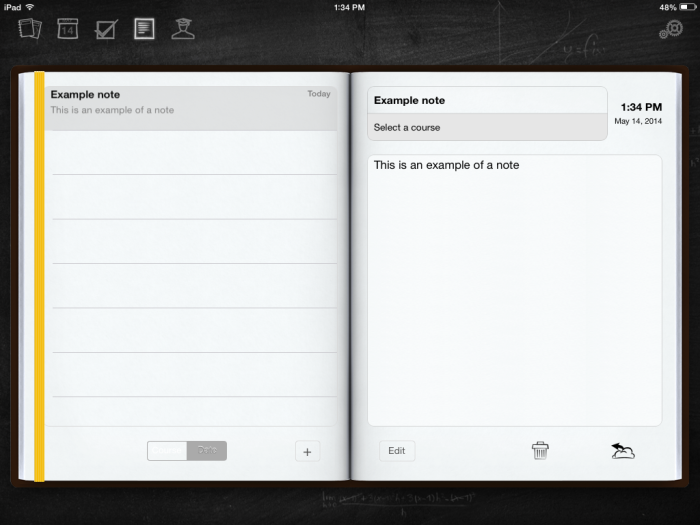
 The note taking ability with inClass is extremely adaptive. You can take video notes, background recording notes, audio notes, text notes, and even photo notes! You can even share your notes on multiple devices using the StudyRoom feature!
The StudyRoom feature also allows for sharing notes to your friends who are in the same “classroom”. You can also email each individual note, share them on Facebook (an example of using social media for educational purposes), and export your notes via iTunes File Sharing or back them up, which you can later open in inClass if, say, you’re changing devices, and you’ll still get all of your notes, tasks and classes.
 There’s also a professors tab where you can input the contact information for each class’s instructor, where you can keep your teacher’s blog address, email address, name, number, etc. Especially in Burlington, where teachers use a variety of different methods of communications, this is extremely helpful. Some teachers have a blog, others have a website, and some only use email.
 There’s also a professors tab where you can input the contact information for each class’s instructor, where you can keep your teacher’s blog address, email address, name, number, etc. Especially in Burlington, where teachers use a variety of different methods of communications, this is extremely helpful. Some teachers have a blog, others have a website, and some only use email.
 In-App purchases are available as well
- Remove adds – $0.99
- Drawing tool – $0.99
Check out this instructional video on how to use inClass.


